
VIP and Wholesale Discounts by Customer Tag
Alfo - Functions gives automatic discounts to specific customers by their customer tag, such as VIP or wholesale. This guide builds three discount rules step by step: a VIP discount on orders over a cart amount, a wholesale price on every cart line, and wholesale quantity breaks on each cart line. Each rule uses only conditions and settings that the Alfo discount editors offer.
For every condition, target and value of the two discount types, see Conditional Discount and Volume & Tiered Discount.
What You Can Do
An Alfo discount holds one or more rule groups. Each rule group has conditions, a target and a discount value. Four condition types read the customer of the checkout:
| Condition type in the editor | Operators | What it checks |
|---|---|---|
| Customer tag | has any of, has none of | The tags of the customer. |
| Customer order count | greater than, greater than or equal to, less than, equals, between | The number of orders that the customer has placed. |
| Customer total spent | greater than, greater than or equal to, less than, equals, between | The amount that the customer has spent across all orders, in store currency. |
| Customer is authenticated | A checkbox, Customer is logged in | Whether the customer is logged in to a customer account. |
One rule group can combine a customer condition with cart conditions, such as Cart subtotal, and with product conditions, such as Product tag.
The recipes use two discount types. Each one needs an Alfo plan:
| Recipe | Discount type in Shopify | Alfo plan |
|---|---|---|
| VIP Discount on Orders over 100 | Conditional discount function | Starter and above |
| Wholesale Price on Every Line | Conditional discount function | Starter and above |
| Wholesale Quantity Breaks per Line | Volume & Tiered discount function | Pro and above |
For Shopify’s own discounts, Shopify admin lets you set the customer eligibility of discount codes and automatic discounts: all customers, customer segments or specific customers. Shopify allows up to 5 customer segments for a single automatic discount. An Alfo rule group checks the customer’s tags at checkout, together with the other conditions of the rule group.
Before You Start
Works on the Basic plan and higher. Checkout upsells and some payment options need Shopify Plus.
Give your customers their tag in Shopify admin first, for example VIP or wholesale. In Alfo, enter each tag as it appears on the customer in Shopify admin.
To create a discount:
- In Shopify admin, go to Discounts and click Create discount.
- In the Select discount type dialog, choose the discount type of the recipe from the Alfo app: Conditional discount function or Volume & Tiered discount function.
- Make it an automatic discount and enter its title. Shopify applies an automatic discount in the cart and at checkout when its conditions are met.
- In the Alfo editor on the same page, under Discount types, tick the types that the recipe names. Then untick the other types. At least one type stays ticked.
- Leave Rule matching strategy at Apply first matching rule only.
- Click Add rule group (in a Volume & Tiered discount: Add volume & tiered rule group). Replace the name of the new rule group with the Rule name of the recipe.
- For each condition of the recipe, click Add condition. A new condition starts with the condition type Cart subtotal, the operator greater than and an empty value. Change them to the values of the recipe. With two or more conditions, the heading Conditions (Match) shows a select: keep ALL conditions (AND), so that every condition must match.
- Set the target and the discount value as the recipe shows.
- Click Save.
Set the discount types before you click Add rule group. A new rule group takes its first target from the ticked types: with Product discount ticked and Shipping discount not ticked, it starts with a product discount on All cart lines.
A rule group with no condition gives its discount to every customer.
The editor does not save an enabled rule group without a name, a target or a discount value, or with a number condition that has no value.
VIP Discount on Orders over 100
This rule gives customers with the tag VIP 15% off the order when the cart subtotal is more than 100 in your store currency.
| Field | Value |
|---|---|
| Discount type in Shopify | Conditional discount function |
| Discount types (Alfo editor) | Order discount only |
| Rule name | VIP 15% off orders over $100 |
| Conditions (Match) | ALL conditions (AND) |
| Condition 1 | Condition type Customer tag, Operator has any of, Tags (comma-separated) VIP |
| Condition 2 | Condition type Cart subtotal, Operator greater than, Value 100 |
| Apply discount to | Tick Apply to order subtotal |
| Discount type | Percentage off |
| Percentage (%) | 15 |
| Discount message (shown at checkout) | VIP 15% off |
has any of matches when the customer has one or more of the tags. A guest checkout has no customer, so no tag matches.
greater than does not include 100 itself. At a subtotal of exactly 100, the rule does not match. Enter the amount in your store currency. Checkout converts it to the buyer’s currency.
Apply to order subtotal gives the discount on the order subtotal. Gift cards in the cart get no discount.
To check the rule, log in to a customer account that has the tag VIP, add more than 100 to the cart and open checkout: the order discount shows. With a subtotal of 100 or less, or with a customer without the tag, the rule does not match.
Wholesale Price on Every Line
This rule gives customers with the tag wholesale 25% off every product in the cart.
| Field | Value |
|---|---|
| Discount type in Shopify | Conditional discount function |
| Discount types (Alfo editor) | Product discount only |
| Rule name | Wholesale customers: 25% off |
| Condition 1 | Condition type Customer tag, Operator has any of, Tags (comma-separated) wholesale |
| Product lines | All cart lines |
| Discount type | Percentage off |
| Percentage (%) | 25 |
| Discount message (shown at checkout) | Wholesale price |
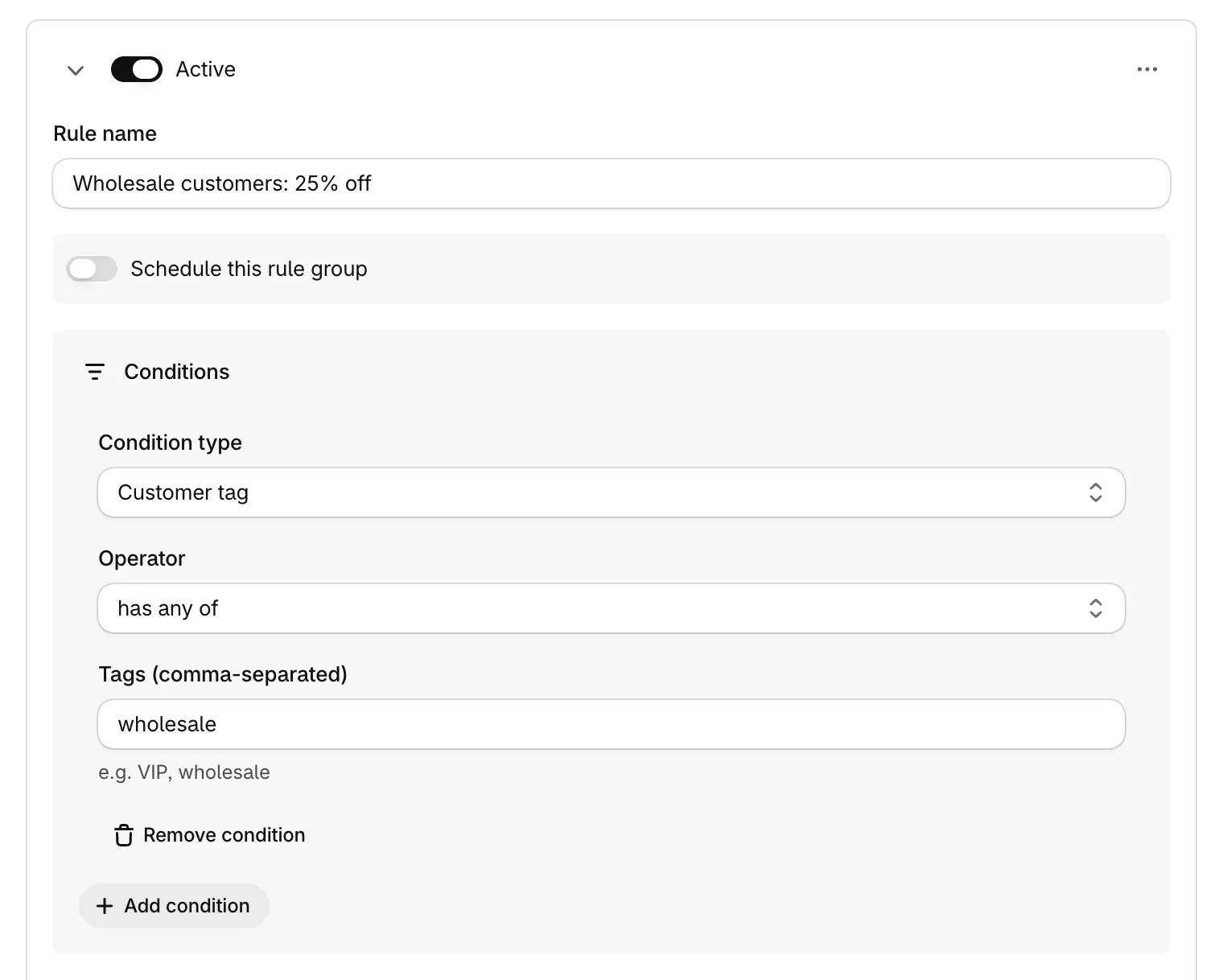
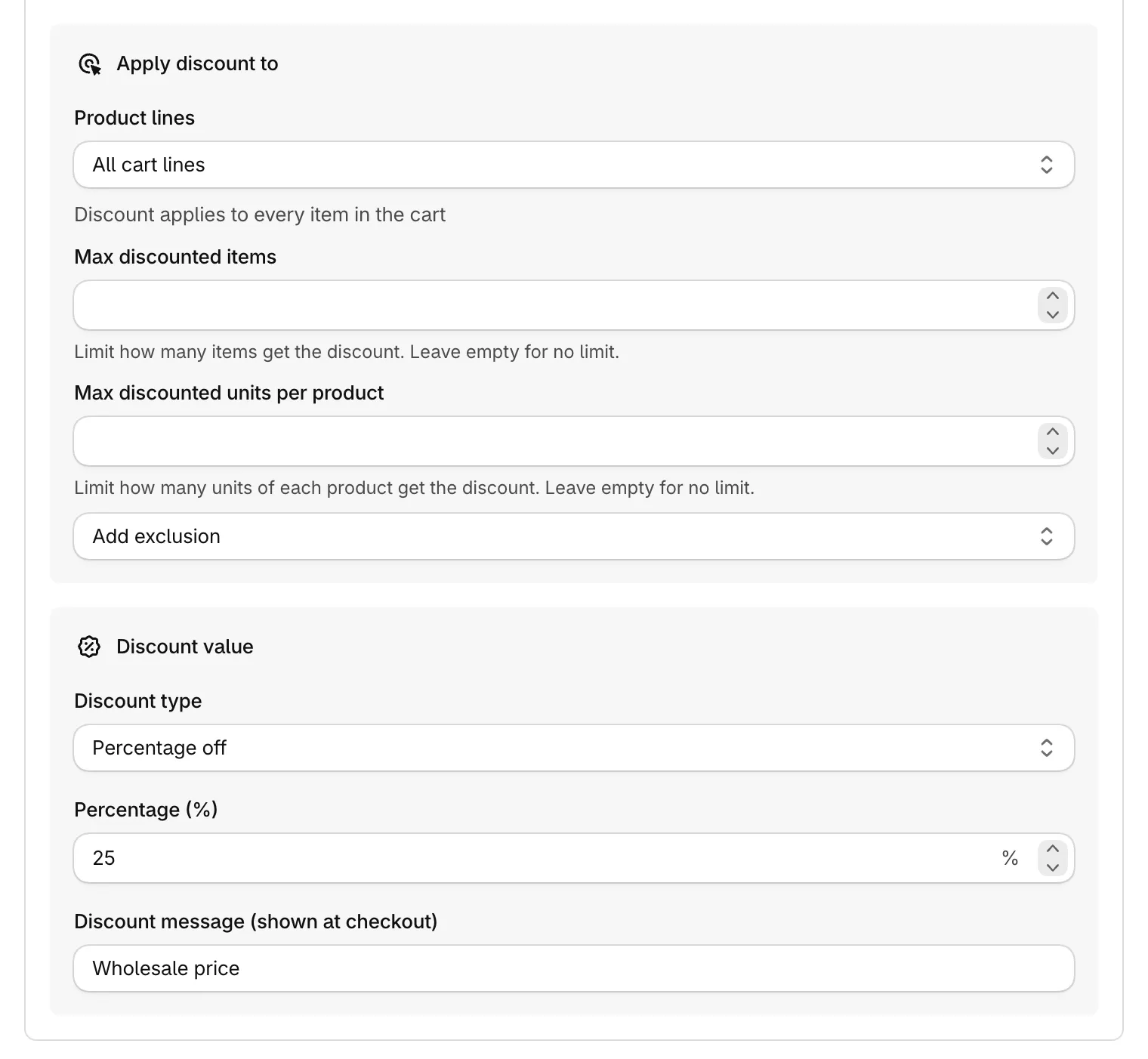
With only Product discount ticked, the new rule group already has Product lines set to All cart lines. The discount applies to each product line of the cart. Gift cards get no discount.
To leave some products out, use Add exclusion under Product lines: Specific products, Specific variants, By collection or By product tag. To give the price on some products only, set Product lines to Specific products or variants and pick them.
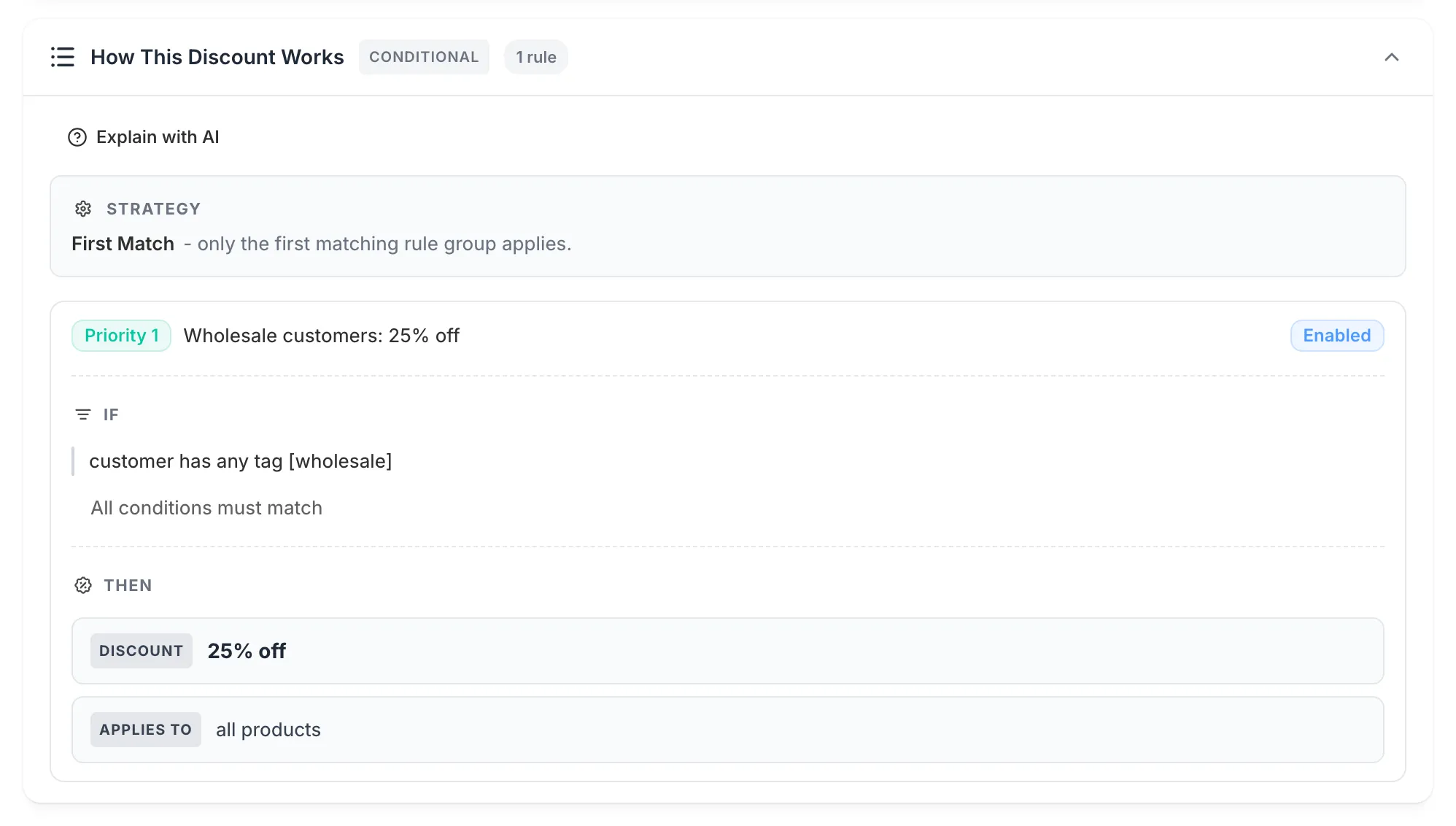
To check the rule, open the discount in Alfo’s Discounts Hub: How This Discount Works shows “customer has any tag [wholesale]”, the discount “25% off” and “all products”. At checkout, log in to a customer account that has the tag wholesale: each product line shows the discount.
Wholesale Quantity Breaks per Line
This rule gives customers with the tag wholesale 15% off a cart line of 10 or more units, and 25% off a cart line of 25 or more units.
| Field | Value |
|---|---|
| Discount type in Shopify | Volume & Tiered discount function |
| Discount types (Alfo editor) | Product discount only |
| Rule name | Wholesale quantity breaks |
| Condition 1 | Condition type Customer tag, Operator has any of, Tags (comma-separated) wholesale |
| Product lines | All cart lines |
| Tier based on | Line item quantity |
| Tier 1 | Min quantity per line 10, Discount type Percentage off, Percentage (%) 15, Discount message “Wholesale: 10 or more” |
| Tier 2 | Min quantity per line 25, Discount type Percentage off, Percentage (%) 25, Discount message “Wholesale: 25 or more” |
Click Add tier for each tier. Each tier needs a threshold above 0 and a discount value.
With Line item quantity, each cart line gets the tier that its own quantity reaches. A line of 12 units gets 15% off, and a line of 30 units gets 25% off. A line below 10 units gets no discount.
Each variant of a product is its own cart line: Shopify puts two sizes of the same t-shirt on two lines. So 6 units of one size and 6 units of another size are two lines of 6, and neither line reaches the 10-unit tier.
To check the rule, log in to a customer account that has the tag wholesale, add 12 units of one item and open checkout: that line shows 15% off. With 9 units, the line gets no discount.
Keep Tagged Customers out of a Discount
To give a discount to every customer except wholesale customers, add this condition to its rule group: Customer tag, has none of, wholesale. A guest checkout has no customer, so has none of matches it.
Alfo does not save an enabled rule group with a has none of condition that has no tag.
Several Customer Groups in One Discount
One discount can hold a rule group for each group of customers, for example a VIP rule group and a rule group for all other customers. With Apply first matching rule only, the rule groups run in list order. After the first rule group that matches and gives a product or order discount, no later rule group gives one. So put the VIP rule group above the general one. When the discount has two or more rule groups, use Move up and Move down in the More actions menu of a rule group to change the order.
Alfo picks the shipping discount and the product or order discount separately. A rule group that gives only a shipping discount, such as free shipping for VIP customers, does not stop a rule group that gives an order discount. For shipping rules, see Free Shipping Rules.
Limits
| Limit | Detail |
|---|---|
| Alfo plans | The Conditional discount function works on every Alfo plan. The Volume & Tiered discount function needs Pro or Enterprise. Starter allows up to 10 rule groups in each discount, Pro 20 and Enterprise 40. |
| Automatic discounts | Shopify allows at most 25 active automatic discounts per store, app-based discounts included. |
| Customer | The customer conditions read the customer of the checkout. A guest checkout has no customer: has any of does not match, has none of matches, and Customer order count and Customer total spent read 0. |
| Customer tags | Checkout reads at most 100 different customer tags for one discount, from its enabled rule groups and code rejection rules. |
| Gift cards | Alfo never discounts gift cards. |
| Conditions | The discount editors offer 16 condition types: Customer tag, Customer order count, Customer total spent, Customer is authenticated, Cart subtotal, Cart total quantity, Cart line count, Cart attribute, Market, Product tag, Collection, Product, Product variant, Line item quantity, Line item price and Line item property. |
Next Steps
- Conditional Discount: every condition, target and value of the conditional discount.
- Volume & Tiered Discount: tier types, quantity breaks and incremental tiers.
- Free Shipping Rules: free shipping for VIP customers, over a cart amount or for some countries.
- Cart-Level Conditions: the customer tag condition and the other customer and cart conditions.
- Hide, Rename or Reorder Payment Methods: show a payment method to tagged customers only.
- Guides by Goal: every Alfo guide, listed by store goal.