
Hide, Rename or Reorder Shipping Methods
Alfo - Functions hides, renames and reorders the shipping and delivery options that buyers see at checkout. This guide builds five rules step by step: hide Express shipping on small orders, rename Express for one state, hide a rate for some states, hide store pickup and local delivery for some products, and add “(FREE)” to options that cost 0. Each rule uses only conditions and targets that the Alfo delivery editor offers.
For every action, target and condition of the delivery function, see Delivery Customization.
What You Can Do
A delivery customization holds one or more rules. Each rule has conditions, a target and one action. The target selects the delivery options that the action changes.
| Action type in the editor | What it does |
|---|---|
| Hide delivery option | Removes the option from checkout. |
| Rename delivery option | Replaces the title, or adds your text before or after it. |
| Reorder delivery option | Moves the option to a position in its list. Position 0 is the top of the list. |
The target has four choices under Match by:
| Match by | Selects |
|---|---|
| All delivery options | Every option. |
| Title | The options whose title matches your text. Title match type is Contains, Exact match, Starts with or Ends with. The match ignores the case of the letters A to Z. |
| Delivery method type | The options of the types that you tick: SHIPPING, LOCAL DELIVERY, STORE PICK UP, PICKUP POINT or NONE. With this choice, the only action is Hide delivery option. |
| Cost | The options whose cost is Greater than, Greater than or equal, Less than, Equals or Between your values. |
A delivery customization cannot change the price of an option and cannot add a new option. It hides, renames and moves the options that checkout already offers.
Before You Start
Works on the Basic plan and higher. Checkout upsells and some payment options need Shopify Plus.
The recipes below find the options by their title, for example “Express” or “Standard”, or by their delivery method or cost. Use the titles that your own checkout shows.
To create a delivery customization:
- In Alfo, open Checkout Hub, then Delivery Customizations.
- Click Create customization.
- Enter a Title and keep Enabled ticked.
- Leave Strategy at Apply all matching rules. With Stop at first match, the rules run in list order. After the first rule that matches and makes a change, no later rule applies.
- Click Add rule. Replace the name “New Rule” with the Rule name of one of the recipes below.
- If the recipe has a condition, click Add condition to add Condition 1. It starts with the type Customer: Customer tag and the operator Has any. Change its Type, Operator and value to the values of the recipe. For a Values field, type one entry and click Add, then repeat for each entry. An entry that you type but do not add is not saved.
- Under Target delivery options, set Match by and its fields as the recipe shows. Under Action, set Action type and its fields.
- Click Save.
A new rule starts with no condition, the target All delivery options and the action Hide delivery option. A rule with no condition applies at every checkout. If you save a new rule as it is, it hides every delivery option at every checkout. Add the condition and set the target before you save.
When the customization has two or more rules, use Move up and Move down in the menu of a rule to change their order.
Delivery Address Conditions
Four condition types read the delivery address of the checkout. The editor also offers 11 customer, cart and product conditions, listed under Limits.
| Condition type | Operators | What it reads |
|---|---|---|
| Delivery: Country | Is any of, Is none of | The country code of the address, such as US. Enter two-letter ISO codes. |
| Delivery: Province/State | Is any of, Is none of | The province or state code of the address, such as NY. |
| Delivery: City | Is any of, Is none of, Contains | The city of the address. |
| Delivery: Zip/Postal code | Is any of, Is none of, Starts with | The postal or ZIP code of the address. |
Country and province or state codes are saved in capital letters. Is any of, Is none of and Contains ignore the case of the letters A to Z. Starts with compares the letters exactly as you type them.
While a checkout has no delivery address, these four conditions do not match, also with Is none of.
Alfo does not save an active rule with a Delivery: Country code that is not a country code, or with an address condition set to Is none of and no entry.
Hide Express Shipping on Small Orders
This rule hides Express when the cart subtotal is less than 30 in your store currency.
| Field | Value |
|---|---|
| Rule name | Hide Express on orders under $30 |
| Conditions | Match ALL (AND) |
| Condition 1 | Type Cart: Subtotal, Operator Less than, Value 30 |
| Match by | Title |
| Title match type | Contains |
| Title value | Express |
| Action type | Hide delivery option |
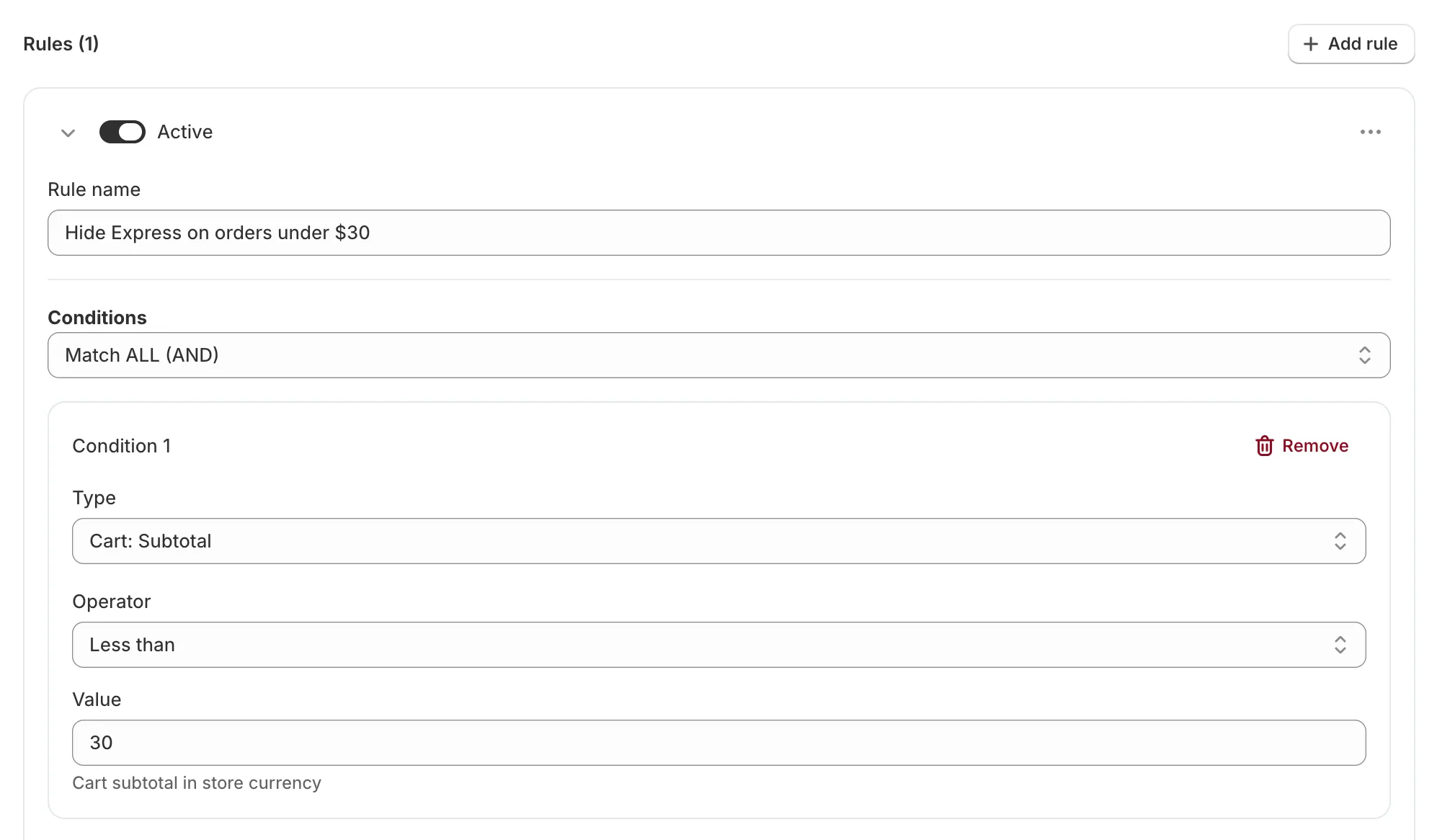
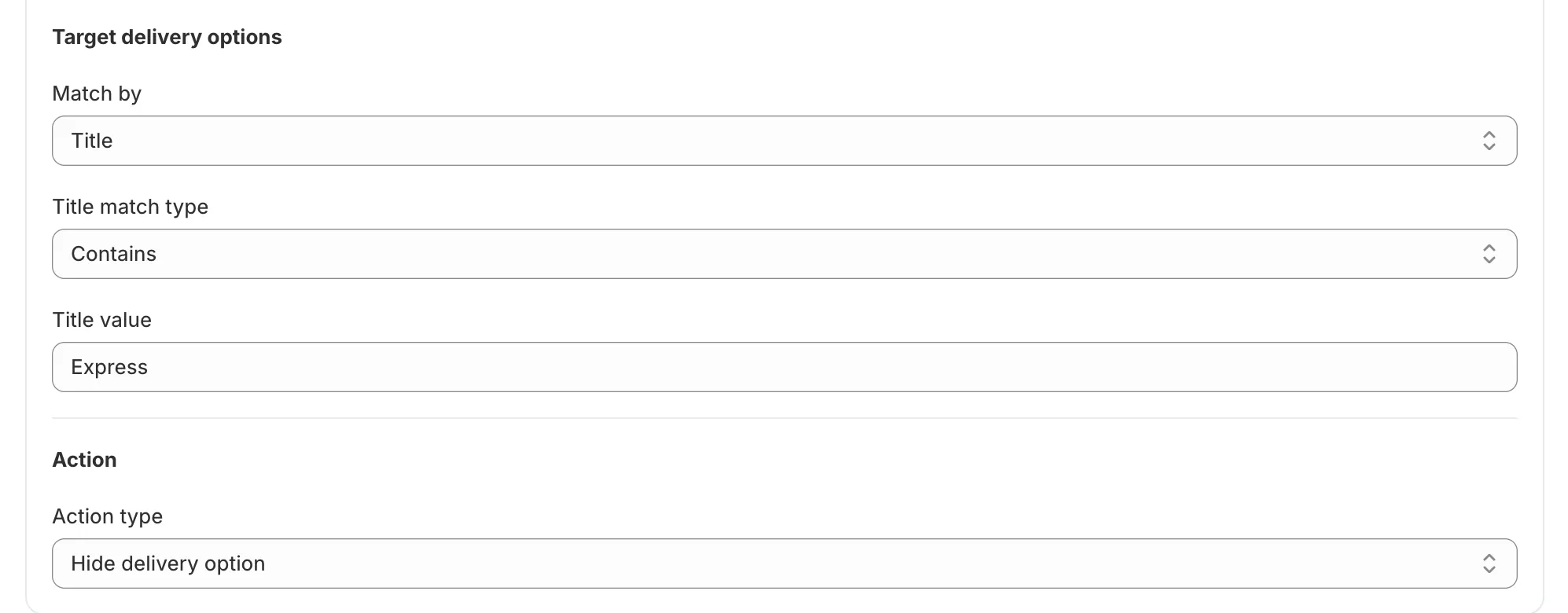
Less than does not include 30 itself. At a subtotal of exactly 30, Express shows.
Enter the amount in your store currency. Checkout converts it to the buyer’s currency.
Contains also matches a longer title that holds the text, such as “Express Shipping”.
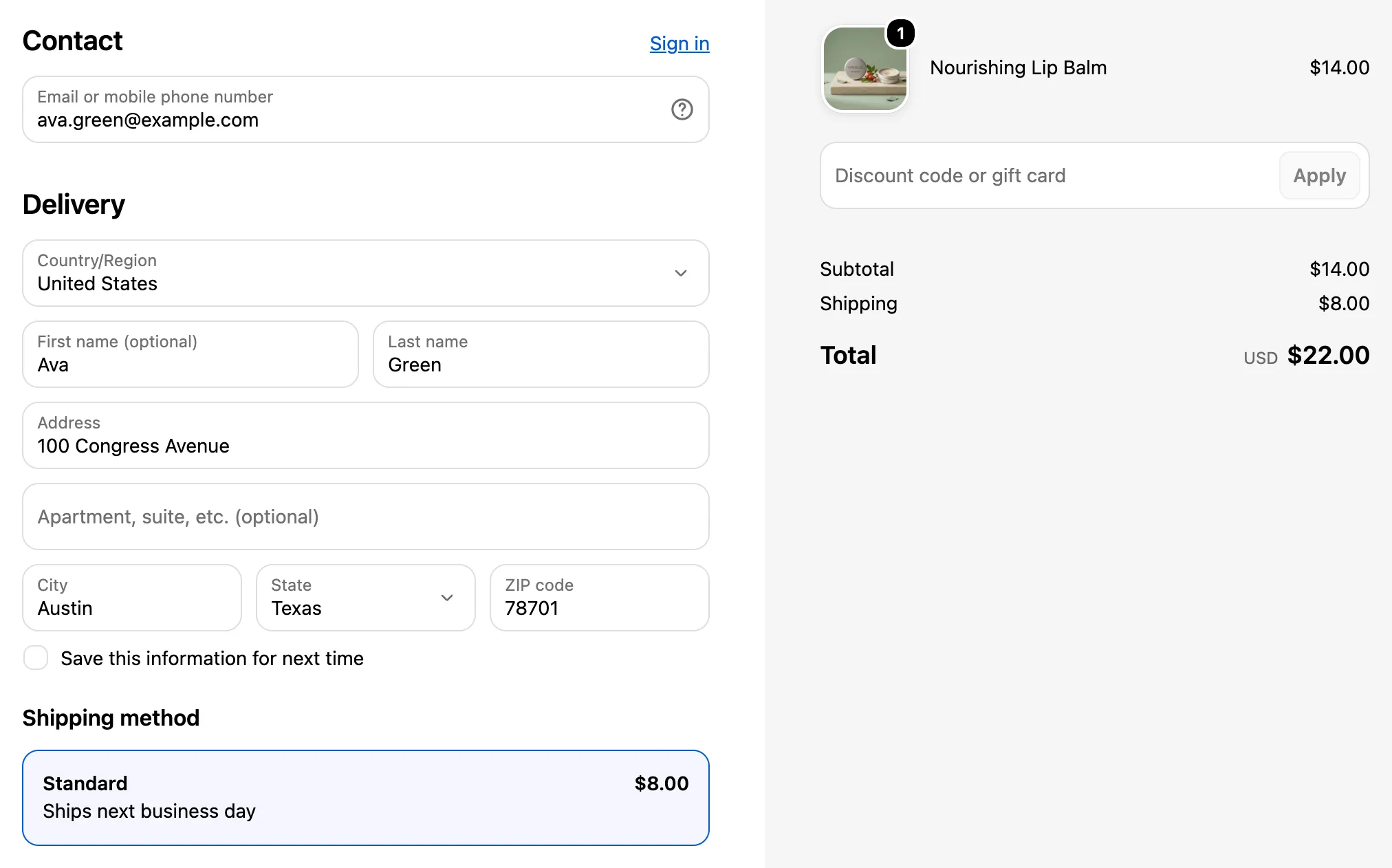
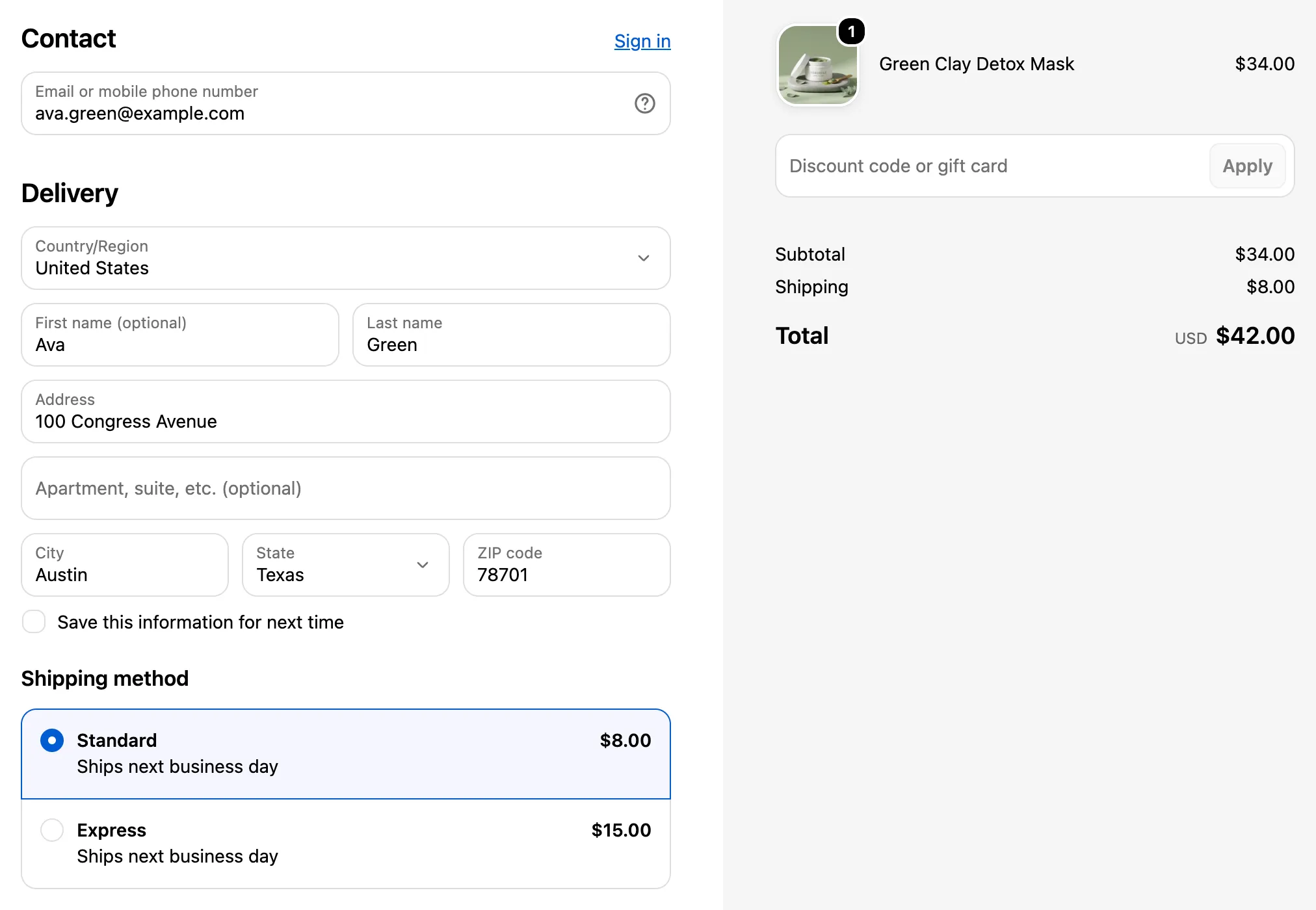
To check the rule, open a checkout with a cart subtotal under 30: Express is gone. Then add items until the subtotal is 30 or more: Express shows.
Rename a Shipping Method for One State
This rule renames Express to “New York Express Courier” when the delivery address is in New York.
| Field | Value |
|---|---|
| Rule name | Rename Express for New York orders |
| Conditions | Match ALL (AND) |
| Condition 1 | Type Delivery: Province/State, Operator Is any of, Values NY (click Add) |
| Match by | Title |
| Title match type | Contains |
| Title value | Express |
| Action type | Rename delivery option |
| Rename mode | Replace title |
| Text value | New York Express Courier |
After you click Add, the code NY shows under the Values field. An Is any of condition with no entry matches no address, so the rule would rename nothing.
Replace title puts your text in place of the whole title. For a rate from a carrier, Shopify keeps the carrier name in front of the new title.
To check the rule, open a checkout with a delivery address in New York: the option shows as “New York Express Courier”. With an address in another state, the option keeps its own title.
Hide a Shipping Rate for Some States
This rule hides the Standard rate for delivery addresses in Hawaii and Alaska.
| Field | Value |
|---|---|
| Rule name | Hide Standard for Hawaii and Alaska |
| Conditions | Match ALL (AND) |
| Condition 1 | Type Delivery: Province/State, Operator Is any of, Values HI and AK (click Add after each) |
| Match by | Title |
| Title match type | Contains |
| Title value | Standard |
| Action type | Hide delivery option |
To hide every shipping rate for those states, choose Match by Delivery method type and tick SHIPPING instead. Buyers in those states then have no shipping rate.
With either target, make sure that buyers in those states still have a delivery option that they can choose.
To check the rule, open a checkout with a delivery address in Hawaii: Standard is gone. With an address in another state, Standard shows.
Hide Store Pickup and Local Delivery for Some Products
This rule hides store pickup and local delivery when the cart holds a product with the tag ship-only.
| Field | Value |
|---|---|
| Rule name | No pickup or local delivery for ship-only products |
| Conditions | Match ALL (AND) |
| Condition 1 | Type Product: Tag, Operator Has any, Tag ship-only (click Add) |
| Match by | Delivery method type |
| Delivery method types | Tick LOCAL DELIVERY and STORE PICK UP |
| Action type | Hide delivery option |
The condition matches when one or more products in the cart have the tag. Enter the tag as it appears on your products in Shopify admin.
Has none matches when no product in the cart has one of the tags. To catch a cart where some product does not have a tag, tag the products that the rule must catch and use Has any.
LOCAL DELIVERY is Shopify’s local delivery method. STORE PICK UP is local pickup. Tick at least one type: with no type ticked, the rule selects every option.
Add “(FREE)” to Options That Cost 0
This rule adds “(FREE)” to the title of each delivery option whose cost is 0, such as a free rate in your shipping settings.
| Field | Value |
|---|---|
| Rule name | Mark options that cost 0 |
| Conditions | None. Do not click Add condition. |
| Match by | Cost |
| Cost operator | Equals |
| Cost value (store currency) | 0 |
| Action type | Rename delivery option |
| Rename mode | Append to title |
| Text value | (FREE) |
A rule with no condition applies at every checkout. Here the target keeps it to the options that cost 0.
Cost operator starts at Greater than. Change it to Equals. Enter 0 in the cost field: with an empty field, the rule selects no option.
Alfo puts a space between the title and your text, so “Standard” becomes “Standard (FREE)”. Enter the text with no space in front.
The match reads only the cost. Every option that costs 0 gets the text, whatever its delivery method type.
To check the rule, open a checkout that offers an option with a cost of 0: its title ends with “(FREE)”. Options with a cost above 0 keep their titles.
Rename or Reorder a Delivery Option
Choose Rename delivery option to change the title that buyers see. Rename mode has three choices: Replace title, Append to title and Prepend to title. Append and prepend put a space between the title and your Text value.
Shopify runs delivery rules before shipping discounts. When a delivery rule renames an option, a shipping discount that selects delivery options by name reads the new name in the carts where that rule applies. There, a discount with Exactly matches and the old name stops. A discount with All except (excludes) and the old name no longer leaves that option out, so the option gets the discount. Add the new name to those discounts and keep the old name: in the carts where the rename rule does not apply, the option still has its old name.
Choose Reorder delivery option to move an option, and enter a Target position (0 = first). Enter 0 or a higher number. A position past the end of the list puts the option last.
With Apply all matching rules, when several rules rename or move the same option, the last action wins.
Limits
| Limit | Detail |
|---|---|
| Alfo plans | Starter allows 5 delivery customizations per store, with up to 5 rules in each. Pro allows 10 customizations, with up to 10 rules in each. Enterprise allows 30 customizations, with up to 30 rules in each. |
| Active customizations | Shopify lets a store activate at most 25 delivery customization functions, so at most 25 delivery customizations can be active, also on Enterprise. |
| Price and new options | A delivery customization cannot change the price of an option or add a new option. |
| Rename | For a rate from a carrier, Shopify keeps the carrier name in front of the title, whatever the rename mode. |
| Reorder | Position 0 is the top of the list. A position past the end puts the option last. A negative position is not valid. Shopify’s rule for reordered shipping options: “The cheapest shipping delivery option must always be the first option selected.” |
| Delivery method type | The only action is Hide delivery option. With no type ticked, the rule selects every option. |
| Delivery address | The four delivery address conditions do not match while the checkout has no delivery address. |
| Accelerated checkouts | In some accelerated checkout wallets, the rules run with a partial address before the buyer authorizes the payment, and again with the full address after it. The partial address has the country, province or state, city and postal code. In some countries, such as the UK and Canada, it has only the start of the postal code. For a postal code condition, use Starts with. |
| Draft orders | Delivery customizations also apply to draft order checkouts. They do not show or apply in the admin while you create the draft order. |
| Conditions | The delivery editor offers 15 condition types: Customer: Customer tag, Customer: Is authenticated, Customer: Order count, Customer: Total spent, Cart: Subtotal, Cart: Total quantity, Cart: Line count, Cart: Attribute, Cart: Market, Product: Tag, Product: Line quantity, Delivery: Country, Delivery: Province/State, Delivery: City and Delivery: Zip/Postal code. It has no condition for a specific product or a collection. |
Next Steps
- Delivery Customization: every action, target and condition of the delivery function.
- Cart-Level Conditions: the customer, cart and market conditions that the delivery editor also offers.
- Guides by Goal: every Alfo guide, listed by store goal.