
Hide, Rename or Reorder Payment Methods
Alfo - Functions hides, renames and reorders the payment methods that buyers see at checkout. This guide builds four rules step by step: hide Cash on Delivery over a cart amount, hide it for buyers in some countries, hide it when the cart has tagged products, and show a payment method to tagged customers only. Each rule uses only conditions that the Alfo payment editor offers.
For every action, payment terms option and condition of the payment function, see Payment Customization.
What You Can Do
A payment customization holds one or more rules. Each rule has conditions and one action. The hide, rename and reorder actions also have a target: all payment methods, or the methods that match a name.
| Action type in the editor | What it does | Shopify plan |
|---|---|---|
| Hide payment method | Removes the method from checkout. | Basic plan and higher. To hide it in one placement, the store needs Shopify Plus. |
| Rename payment method | Replaces the name, or adds your text before or after it. | Basic plan and higher. |
| Reorder payment method | Moves the method to a position in the list. Position 0 is the top of the list. | Basic plan and higher. |
| Set payment terms (Plus only) | Sets net, fixed-date or event-based payment terms, with an optional deposit. | Shopify Plus only. |
| Require order review (Plus + B2B) | Submits the checkout as a draft that you review and approve. | Shopify Plus only. B2B purchases only. |
Alfo cannot add a payment method. To show a method to some buyers only, hide it for every other buyer. The last recipe on this page does that.
The hide action has two boxes: Hide from accelerated checkout only and Hide from payment method list only. With no box ticked, the method is hidden everywhere. Hiding a method in one placement works on Shopify Plus stores only. On other stores, Shopify ignores the boxes and hides the whole method.
Before You Start
Works on the Basic plan and higher. Checkout upsells and some payment options need Shopify Plus.
The recipes below hide manual payment methods, such as cash on delivery or a bank transfer. Each recipe finds the method by its name, for example “Cash on Delivery” or “Bank Deposit”. Use the name that your own checkout shows.
To create a payment customization:
- In Alfo, open Checkout Hub, then Payment Customizations.
- Click Create customization.
- Enter a Title and keep Enabled ticked.
- Leave Strategy at Apply all matching rules. With Stop at first match, the rules run in list order. After the first rule that matches and makes a change, no later rule applies.
- Click Add rule. Enter the Rule name of one of the recipes below.
- Click Add condition to add Condition 1. It starts with the type Customer: Customer tag and the operator Has any. Change its Type, Operator and value to the values of the recipe.
- Set Match by, Name match type, Payment method name and Action type as the recipe shows.
- Click Save.
A new rule starts with the action Hide payment method, the target All payment methods and no condition. A rule with no condition applies at every checkout, and the target All payment methods selects every method. Add the condition and set the target before you save.
Hide Cash on Delivery over a Cart Amount
This rule hides Cash on Delivery when the cart subtotal is more than 100 in your store currency.
| Field | Value |
|---|---|
| Rule name | Hide Cash on Delivery on orders over $100 |
| Conditions | Match ALL (AND) |
| Condition 1 | Type Cart: Subtotal, Operator Greater than, Value 100 |
| Match by | By name |
| Name match type | Contains |
| Payment method name | Cash on Delivery |
| Action type | Hide payment method |
Greater than does not include 100 itself. Choose Greater than or equal to hide the method at exactly 100 too.
Enter the amount in your store currency. Checkout converts it to the buyer’s currency.
Contains also matches a longer name that holds the text, such as “Cash on Delivery (COD)”. Name matching ignores the case of the letters A to Z.
To check the rule, open a checkout with a cart subtotal under 100: Cash on Delivery shows. Then add items until the subtotal is over 100: Cash on Delivery is gone.
Hide Cash on Delivery for Buyers in Some Countries
This rule hides Cash on Delivery for buyers in Canada. The Cart: Market condition reads the buyer’s country code at checkout (localization.country.isoCode) and compares it with your list.
| Field | Value |
|---|---|
| Rule name | Hide Cash on Delivery for buyers in Canada |
| Conditions | Match ALL (AND) |
| Condition 1 | Type Cart: Market, Operator Is any of, Country codes CA |
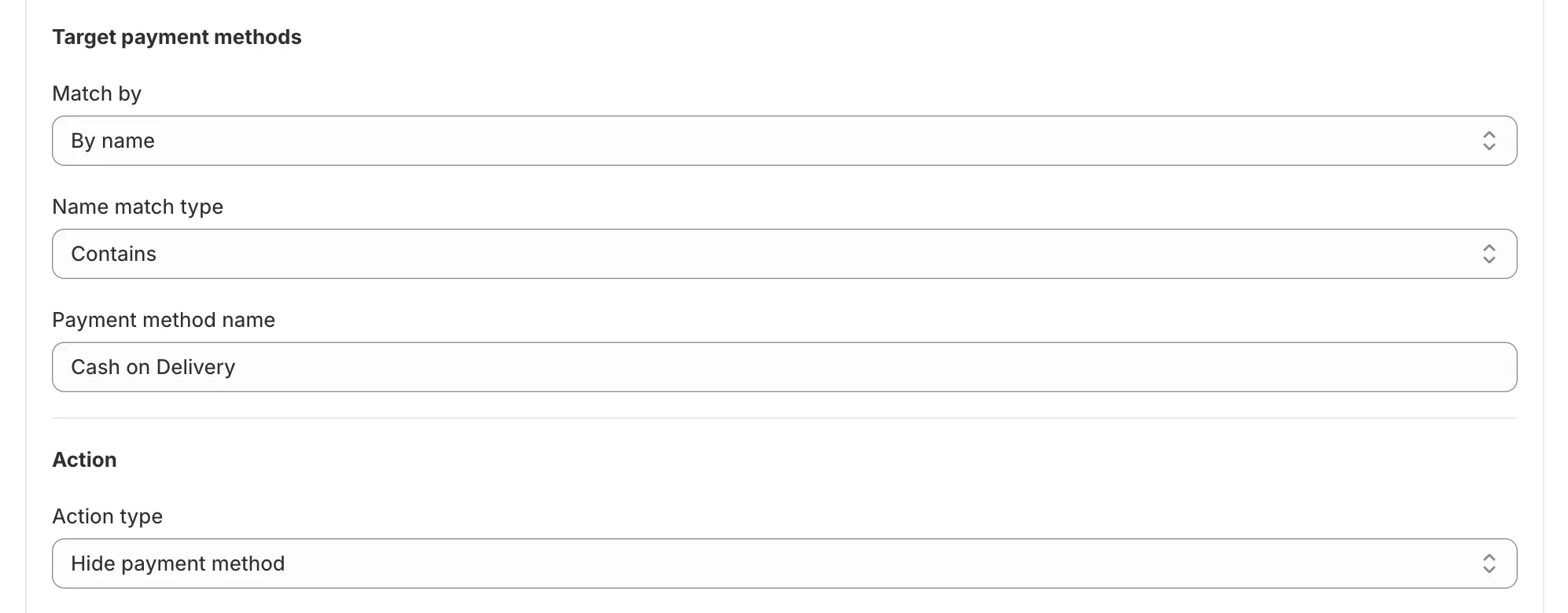
| Match by | By name |
| Name match type | Contains |
| Payment method name | Cash on Delivery |
| Action type | Hide payment method |
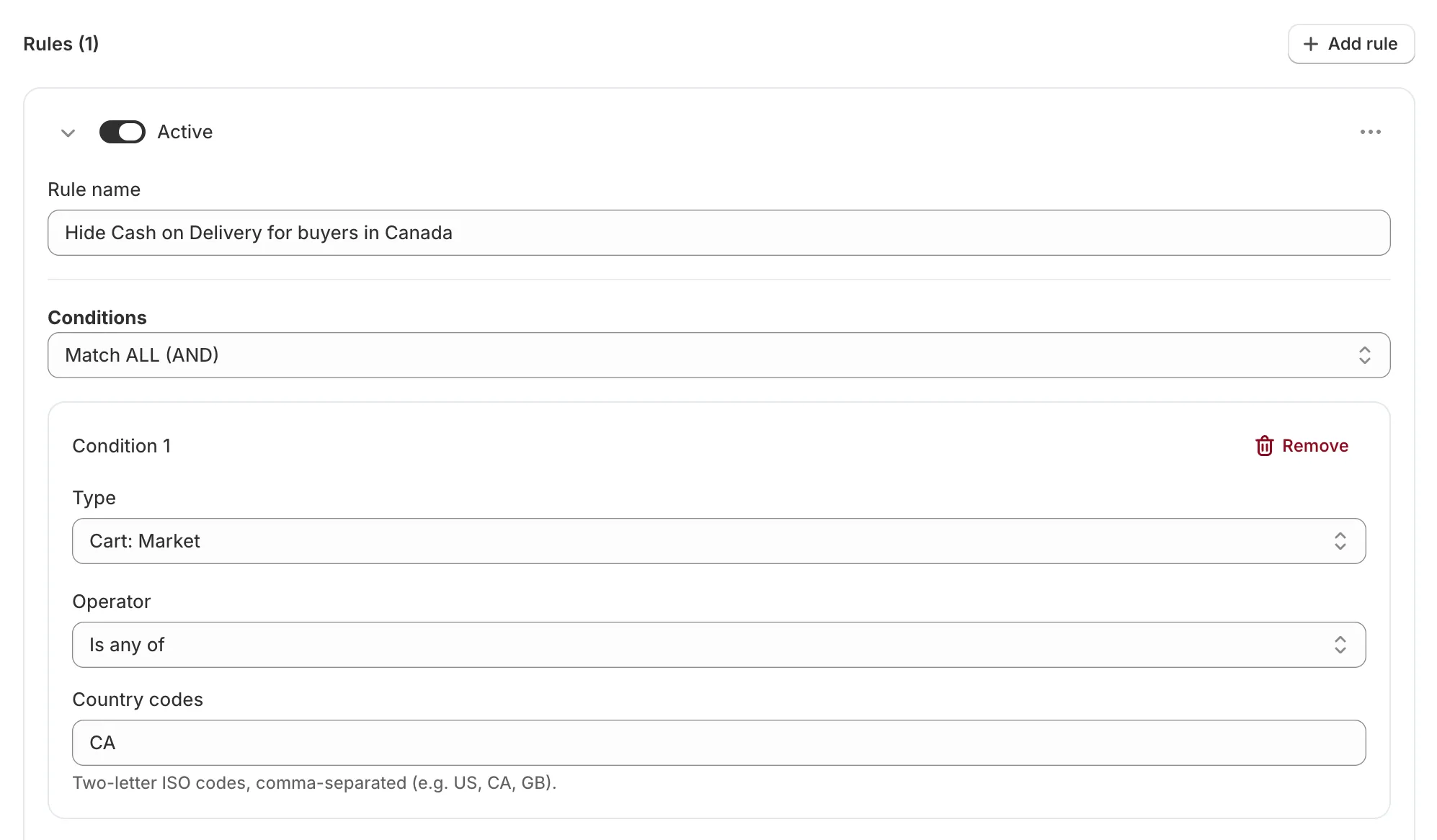
Enter two-letter ISO country codes in capital letters, separated by commas, for example US, CA, GB. Write GB, not UK. Alfo does not save an active rule with a code that is not a country code.
To offer Cash on Delivery in some countries only, choose Is none of and list those countries. The rule then hides the method for buyers in every other country.
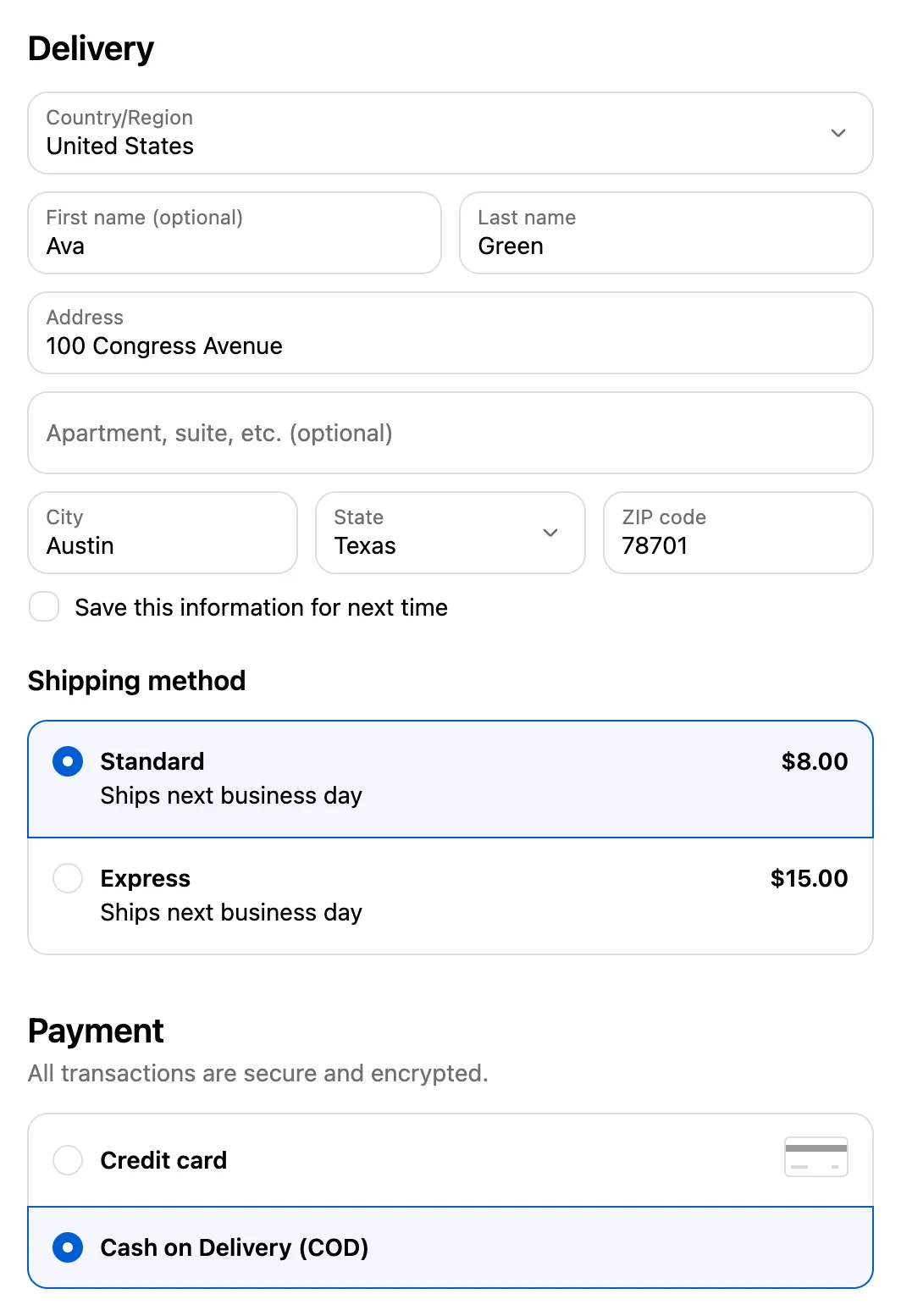
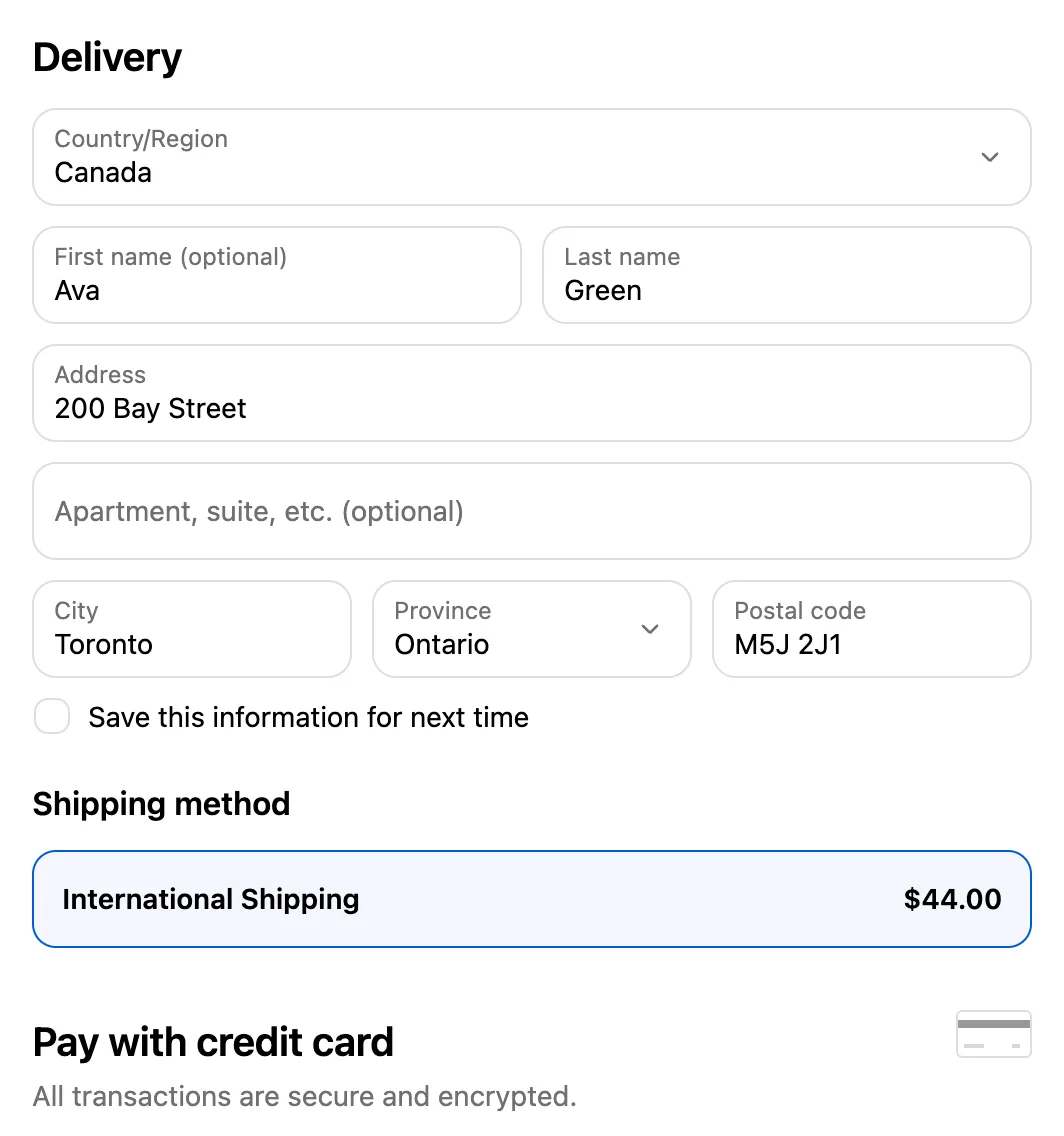
To check the rule, start a checkout with a country that is not on your list: Cash on Delivery shows. Then change the country to one on your list in the same checkout: Cash on Delivery is gone.
Hide Cash on Delivery When the Cart Has Tagged Products
The payment editor has no condition for a specific product, a collection or a delivery address. To hide a method for some products, give those products a tag in Shopify admin. Then use the Product: Tag condition.
| Field | Value |
|---|---|
| Rule name | Hide Cash on Delivery for made-to-order items |
| Conditions | Match ALL (AND) |
| Condition 1 | Type Product: Tag, Operator Has any, Tag made-to-order (click Add) |
| Match by | By name |
| Name match type | Contains |
| Payment method name | Cash on Delivery |
| Action type | Hide payment method |
The condition matches when at least one product in the cart has one of the tags. Enter each tag as it appears in Shopify admin.
Has none matches when no product in the cart has one of the tags. To catch a cart where some product does not have a tag, tag the products that the rule must catch and use Has any.
To check the rule, add a product with the tag to the cart and open checkout: Cash on Delivery is gone. Then remove that product: Cash on Delivery shows again.
Show a Payment Method to Tagged Customers Only
This rule shows Bank Deposit only to customers with the tag wholesale. It hides the method for every buyer without the tag.
| Field | Value |
|---|---|
| Rule name | Bank Deposit for wholesale customers only |
| Conditions | Match ALL (AND) |
| Condition 1 | Type Customer: Customer tag, Operator Has none, Tag wholesale (click Add) |
| Match by | By name |
| Name match type | Contains |
| Payment method name | Bank Deposit |
| Action type | Hide payment method |
A guest checkout has no customer, so no tag matches and the method stays hidden there too. Enter the tag as it appears on the customer in Shopify admin.
On stores that are not on Shopify Plus, Shopify does not apply payment customizations to credit cards in the United States and Canada. Pick a method that is not a credit card.
To check the rule, open checkout as a guest: Bank Deposit is gone. Then check out with a customer account that has the tag wholesale: Bank Deposit shows.
Rename or Reorder a Payment Method
Choose Rename payment method to change the name that buyers see. Rename mode has three choices: Replace name, Append to name and Prepend to name. Append and prepend put a space between the name and your Text value.
Choose Reorder payment method to move a method, and enter a Target position (0 = first).
With Apply all matching rules, when several rules rename or move the same method, the last action wins.
A method whose name is a logo, such as a wallet, and the gift card field cannot be renamed. Wallets can be hidden, but not reordered.
Limits
| Limit | Detail |
|---|---|
| Alfo plans | Starter allows 5 payment customizations per store, with up to 5 rules in each. Pro allows 10 customizations, with up to 10 rules in each. Enterprise allows 30 customizations, with up to 30 rules in each. |
| Active customizations | Shopify lets a store activate at most 25 payment customization functions, so at most 25 payment customizations can be active, also on Enterprise. |
| Credit cards in the United States and Canada | On stores that are not on Shopify Plus, Shopify limits payment customizations in the United States and Canada to methods that are not credit cards. Credit card options stay as Shopify offers them. |
| Hide placements | Shopify Plus only. On other stores, a hide removes the whole method. |
| Rename | A method whose name is a logo, such as a wallet, and the gift card field cannot be renamed. |
| Reorder | Wallets can be hidden, but not reordered. |
| Shop Pay | In Shop Pay, payment customizations change no payment method except the gift card field. |
| Payment terms | Shopify Plus only. Payment terms cannot be set on accelerated checkouts. |
| Order review | Shopify Plus only, and B2B checkouts only. |
| Point of Sale | Payment customizations do not run in Point of Sale. |
| Conditions | The payment editor offers 11 condition types: Customer: Customer tag, Customer: Is authenticated, Customer: Order count, Customer: Total spent, Cart: Subtotal, Cart: Total quantity, Cart: Line count, Cart: Attribute, Cart: Market, Product: Tag and Product: Line quantity. It has no condition for a specific product, a collection or a delivery address. |
Next Steps
- Payment Customization: every action, payment terms option and condition of the payment function.
- Cart-Level Conditions: the market condition and the other cart-level condition types.
- Guides by Goal: every Alfo guide, listed by store goal.