
Minimum Order Value and Maximum Quantity at Checkout
Alfo - Functions blocks checkout when a cart is below your minimum order value or holds more items than you allow. This guide builds three rules step by step: a minimum order value, a maximum quantity of each item, and a maximum number of items per order. Each rule uses only conditions that the Alfo validation editor offers.
For every condition, trigger step and error target of the validation function, see Cart & Checkout Validation.
What You Can Do
You create checkout rules in Shopify admin, under Settings > Checkout > Checkout rules, not in the Alfo app. The Alfo editor opens inside the checkout rule page. One checkout rule can hold one or more validation rules. Each validation rule has conditions, a Trigger at step, an Error target and an Error message.
When the conditions of a rule match, the buyer sees your error message, and the error blocks checkout. A rule cannot show a message and still let the buyer continue.
The recipes below use three condition types:
| Condition in the editor | What it reads | Operators |
|---|---|---|
| Cart Subtotal | The cart subtotal. | greater than, greater than or equal, less than, equals, between |
| Line Quantity | The quantity of each cart line, one line at a time. | greater than, greater than or equal, less than, equals |
| Cart Total Quantity | The quantities of all cart lines added up. | greater than, greater than or equal, less than, equals, between |
Trigger at decides when a rule runs. A rule runs only at the step that you choose. The descriptions are the ones that the editor shows:
| Trigger at | Editor description |
|---|---|
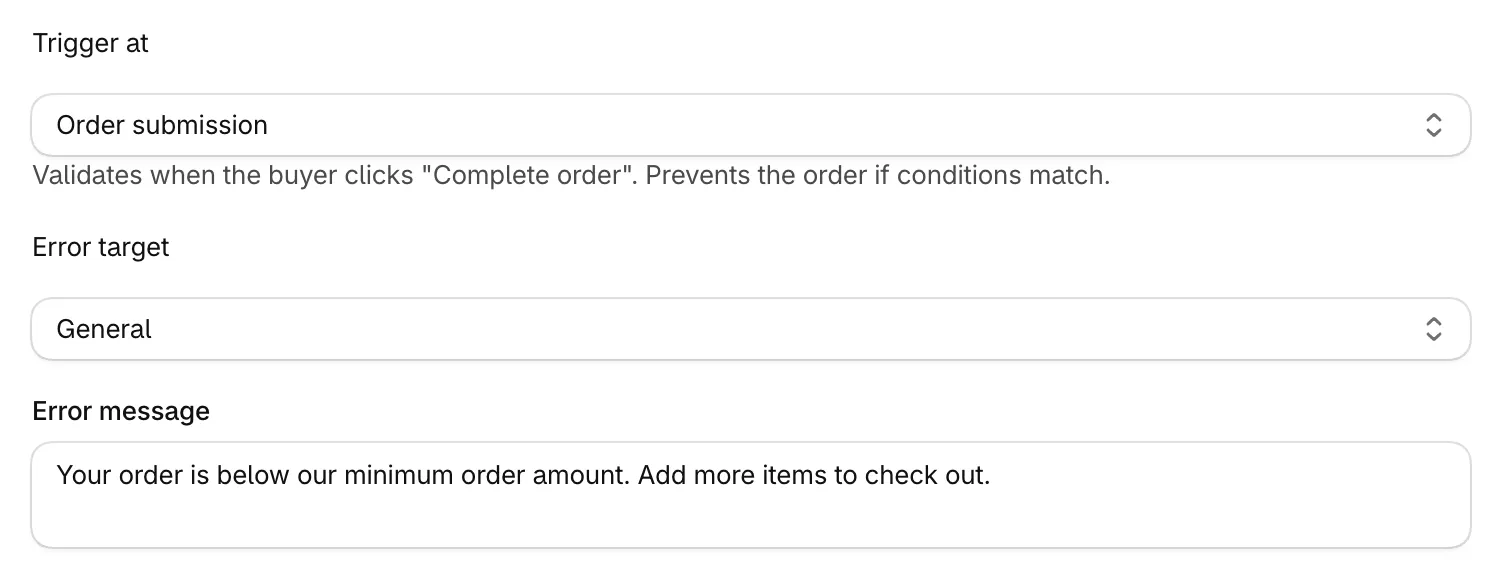
| Order submission | Validates when the buyer clicks “Complete order”. Prevents the order if conditions match. |
| Checkout fields | Validates as the buyer fills in checkout fields. |
| Cart page | Validates while the buyer browses the cart, before entering checkout. |
A new rule starts at Order submission, and the recipes below keep it. To stop the order, choose Order submission. To show the message while the buyer fills in the checkout fields too, add the same rule a second time with Trigger at set to Checkout fields. The second rule counts toward the rule limit of your plan.

Error target decides where the message shows. General is the default and the setting of the recipes: it ties the message to the cart, not to one field. The other targets attach the message to one checkout field, such as Email or a delivery address field.
Before You Start
Works on the Basic plan and higher. Checkout upsells and some payment options need Shopify Plus.
Every Alfo plan includes checkout rules. Alfo’s Cart & Checkout Validations page lists your checkout rules. There you can turn a checkout rule on or off, delete it, or ask the AI to explain it. To create or edit one, use Shopify admin.
To create a checkout rule:
- In Shopify admin, go to Settings > Checkout.
- In the Checkout rules section, click Add rule. A list of checkout rules opens.
- Pick the Alfo cart & checkout validation function.
- Enter a title for the checkout rule, such as the Checkout rule title of one of the recipes below.
- In the Alfo editor on the same page, leave Evaluation strategy at All rules.
- Click Add validation rule. The new rule opens with one condition: Condition set to Cart Subtotal, Operator set to greater than, and an empty Value.
- Enter the Rule name of the recipe. Set Condition, Operator and Value to the values of the recipe.
- Keep Trigger at at Order submission. Set Error target and Error message as the recipe shows.
- To turn on the checkout rule, set Status to Active.
- Click Save.
The editor does not save an enabled rule with a number condition that has no value. Enter the value of the recipe before you save.
To add a second condition to a rule, click Add condition. If you delete every condition of a rule, the rule matches every cart at its Trigger at step, and its error blocks every checkout.
One checkout rule can hold all three recipes as separate validation rules, or each recipe can have its own checkout rule. To add a rule to an existing checkout rule, open it in Settings > Checkout > Checkout rules and click Add validation rule.
With All rules, the buyer sees the message of every rule that matches. With First match, the rules run in list order. After the first rule that matches, no later rule applies, so the buyer sees one message. To change the order, use the up and down arrows of a rule.
Set a Minimum Order Value
This rule blocks checkout when the cart subtotal is less than 25 in your store currency.
| Field | Value |
|---|---|
| Checkout rule title | Minimum order $25 |
| Rule name | Minimum order of $25 |
| Conditions match | ALL (AND) |
| Condition | Cart Subtotal, Operator less than, Value 25 |
| Trigger at | Order submission |
| Error target | General |
| Error message | Your order is below our minimum order amount. Add more items to check out. |
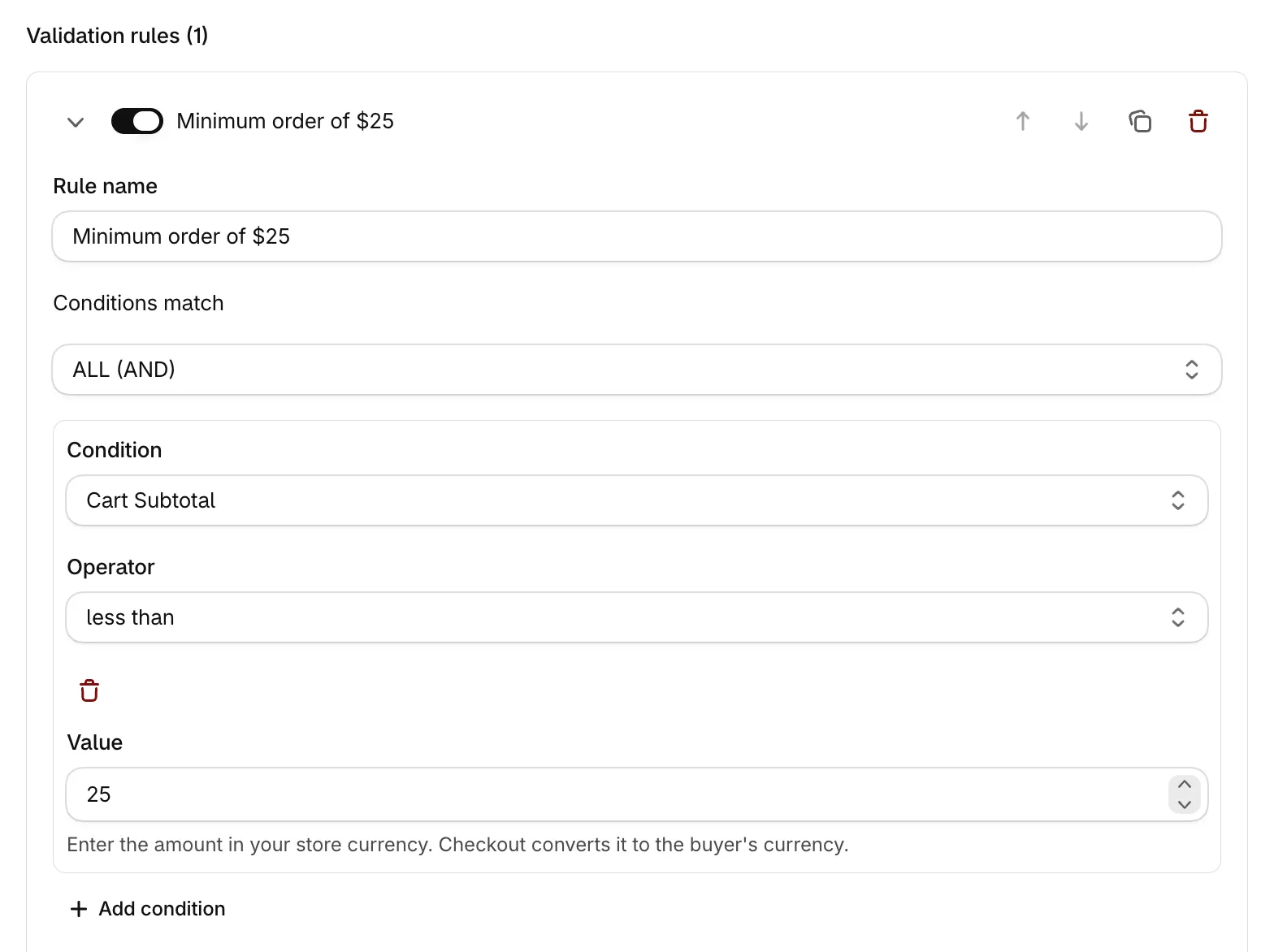
less than does not include 25 itself. At a subtotal of exactly 25, the rule does not match.
Enter the amount in your store currency. Checkout converts it to the buyer’s currency.
Do not put an amount in the error message. Checkout converts the value of the condition, but it shows the message exactly as you typed it. An amount in the message does not match the currency of a buyer who pays in another currency.
Always enter an error message. Without one, the buyer sees the rule name.
To check the rule, start a checkout with a cart subtotal under 25 and try to complete the order: the message shows, and the rule prevents the order. With a subtotal over 25, the rule does not match.
To set the minimum for some customers only, such as wholesale customers, add a second condition: Customer Tag, has any of, and wholesale in Tags (comma-separated). Keep Conditions match at ALL (AND). A guest checkout has no customer, so the rule does not apply to guests. Enter the tag as it appears on the customer in Shopify admin.
Limit the Quantity of Each Item
This rule blocks checkout when one cart line holds more than 2 units.
| Field | Value |
|---|---|
| Checkout rule title | Limit 2 of each item per order |
| Rule name | Max 2 of each item |
| Conditions match | ALL (AND) |
| Condition | Line Quantity, Operator greater than, Value 2 |
| Trigger at | Order submission |
| Error target | General |
| Error message | You can buy up to 2 of each item per order. Lower the quantity to continue. |
greater than does not include 2 itself. A line of 2 units passes, and a line of 3 units matches the rule.
The condition checks each cart line on its own. Each variant of a product is its own cart line: Shopify puts two sizes of the same t-shirt on two lines. So the limit applies to each variant, and a buyer can buy 2 of each size.
To check the rule, start a checkout with 3 units of one item and try to complete the order: the message shows, and the rule prevents the order. With 2 units of that item, the rule does not match.
Limit the Number of Items per Order
This rule blocks checkout when the cart holds more than 10 items in total.
| Field | Value |
|---|---|
| Checkout rule title | Limit 10 items per order |
| Rule name | Max 10 items per order |
| Conditions match | ALL (AND) |
| Condition | Cart Total Quantity, Operator greater than, Value 10 |
| Trigger at | Order submission |
| Error target | General |
| Error message | You can buy up to 10 items per order. Remove some items to continue. |
Cart Total Quantity adds up the quantities of all cart lines. For example, 3 units of one item and 8 units of another make 11 items, so the rule matches. A cart of exactly 10 items passes.
To check the rule, start a checkout with 11 items and try to complete the order: the message shows, and the rule prevents the order. With 10 items, the rule does not match.
Limits
| Limit | Detail |
|---|---|
| Alfo plans | Starter allows up to 5 validation rules in each checkout rule. Pro allows up to 10, and Enterprise up to 30. |
| Shopify limit | Shopify lets a store activate at most 25 validation functions. |
| Per customer and lifetime | A rule reads the current cart, its delivery address and four customer facts: Customer Tag, Customer Authenticated, Customer Order Count and Customer Total Spent. No condition counts the units that a customer bought in earlier orders, so a rule cannot limit what one customer buys across orders. |
| Pack sizes | No operator checks that a quantity is a multiple of a number, such as packs of 6. |
| Conditions in one rule | A rule checks each condition on its own. With Product Tag and Line Quantity in one rule, the rule matches when one line has the tag and any line, also another one, holds more units than your value. Cart Total Quantity counts every line, also lines without the tag. |
| Variants | Line Quantity checks each cart line, and each variant is its own cart line. |
| Failed runs | By default, when a run fails, for example on a timeout, checkout continues without the rule. To block checkout in that case, select Block checkout if app experiences a problem in the checkout rule. |
| Draft orders | Checkout rules also apply to draft orders by default. You can override all validation rules on a draft order before you complete it. |
| Express checkouts | Checkout rules also apply to express checkouts, such as Shop Pay. |
| Conditions | The validation editor offers 16 condition types: Customer Tag, Customer Authenticated, Customer Order Count, Customer Total Spent, Cart Subtotal, Cart Total Quantity, Cart Line Count, Cart Attribute, Product Tag, Collection, Line Quantity, Line Price, Line Property, Delivery Country, Delivery Province and Delivery Zip. It has no condition for a specific product or variant. |
Next Steps
- Cart & Checkout Validation: every condition, trigger step and error target of the validation function.
- Cart-Level Conditions: the cart subtotal, cart total quantity and customer conditions.
- Product-Level Conditions: the line quantity and product tag conditions.
- Guides by Goal: every Alfo guide, listed by store goal.